·6 min read
Claude Code Hooks: A Practical Setup Guide
Claude Code hooks are shell commands that run at fixed points in a session. Here is how they are configured, how exit codes block actions, and how to set one up safely.
Claude Code hooks are handlers that run on their own at fixed points in a session. You do not ask Claude to run them. The harness runs them. That makes them useful for rules that should always apply, like logging every command or checking a file before it is written.
This guide covers how hooks are configured, how their exit codes control an action, and how to set one up without breaking your session.
TL;DR
- Hooks run at named events, such as
PreToolUse,PostToolUse,UserPromptSubmit,StopandSessionEnd. - Each hook is a handler. A handler can be a shell command, an HTTP endpoint, an MCP tool call, an LLM prompt or a subagent.
- Exit code 2 blocks the action on events that can block. Any other non-zero exit is a non-blocking error, unless the hook sets
onFailuretoblock. - Hooks fail open by default. A crash lets the action continue.
Where hooks live
Hooks are set in JSON settings files. There are three places most people use:
~/.claude/settings.jsonapplies to every project on your machine..claude/settings.jsonapplies to one project..claude/settings.local.jsonapplies to one project.
Start with a project file, because a hook there is easy to find, easy to remove, and easy to show someone else. Move it to your user settings only once it has proved useful across several projects.
The structure has three levels: an event, then matcher groups, then handlers. Here is a hook that runs before any Bash command:
{
  "hooks": {
    "PreToolUse": [
      {
        "matcher": "Bash",
        "hooks": [
          {
            "type": "command",
            "command": "${CLAUDE_PROJECT_DIR}/.claude/hooks/check-bash.sh"
          }
        ]
      }
    ]
  }
}
The matcher decides which tool calls trigger the hook. A plain name like Bash is an exact match. A matcher with any character other than letters, digits, _, -, spaces, commas and | is read as a regular expression. Leave it out, or use "*", to match everything.
The events you will use first
Most real hooks use a handful of these events:
| Event | When it runs | Can it block? |
|---|---|---|
PreToolUse | Before a tool runs | Yes |
PostToolUse | After a tool finishes | No, the tool already ran |
UserPromptSubmit | When you send a prompt | Yes, exit 2 blocks the prompt |
Stop | When Claude finishes a response | Yes, exit 2 keeps Claude going |
SessionStart | When a session starts | No |
SessionEnd | When a session closes | No |
The full list is in the official hooks documentation at code.claude.com/docs/en/hooks. Check it before you build on an event name.
Blocking with exit codes
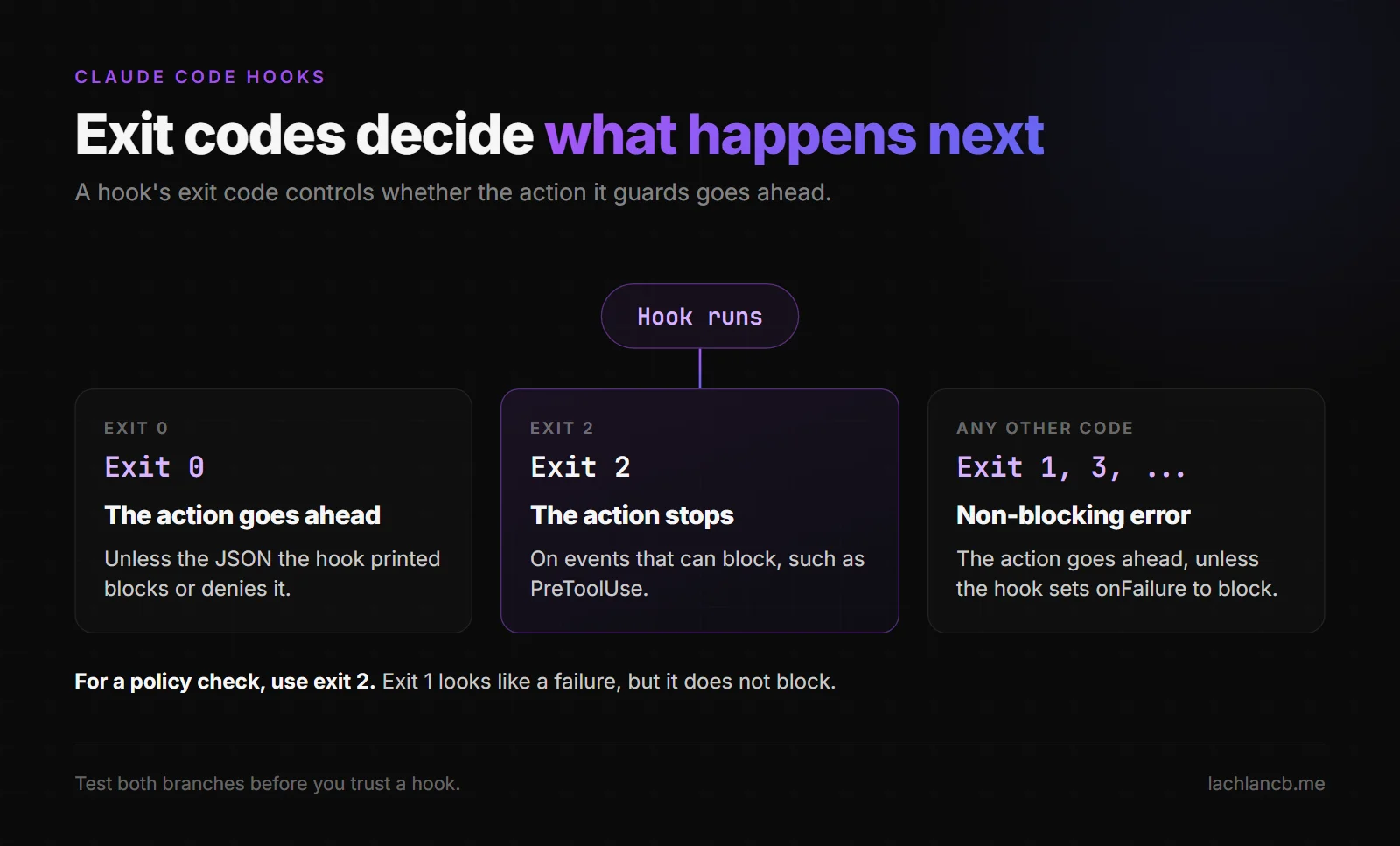
The exit code decides what happens next:
- Exit 0. The action goes ahead, unless the JSON the hook printed blocks or denies it.
- Exit 2. The action stops, on events that can block.
- Any other exit code. A non-blocking error. The action goes ahead, unless the hook sets
onFailuretoblock.
The mistake to avoid is using exit 1 for a policy check. Exit 1 looks like a failure, but it does not block. A guard script should use exit 2.
You can also block with JSON. This example denies a tool call and gives Claude the reason:
{
  "hookSpecificOutput": {
    "hookEventName": "PreToolUse",
    "permissionDecision": "deny",
    "permissionDecisionReason": "Writes to the migrations folder need a review first"
  }
}
Write the reason as a clear instruction, so you can read the block later and know what to change.
Keep hooks fast
A PreToolUse hook runs before every matching tool call. If it takes three seconds, every Bash command takes three seconds longer. Keep the script small. Move slow work to the background, and print your decision before you start it, so the hook returns at once.
Output has a limit too. Plain stdout, systemMessage and additionalContext are capped at 10,000 characters. Print a short summary, not the full log.
Test a hook before you trust it
A hook you have not run is a guess. Test the script on its own first. Pipe a sample JSON object into it from a terminal, then check the exit code straight after. An exit code of 2 blocks the action on an event that can block, such as PreToolUse. An exit code of 0 lets it go ahead, unless the JSON the script printed denies it.
Test both branches. A hook that only ever allows is untested in the case that matters. Feed it one input that should pass and one that should fail, and confirm each result before you attach the hook to a live event.
Then run it in a throwaway project, not your main repository. Watch the first few real sessions. If a hook starts blocking work you expected to go through, remove it first and debug it after.
Safety notes
Hooks are a convenience, not a security boundary. Three rules keep them honest:
- Use permissions for hard rules. If a command must never run, deny it in the permission settings. A hook can miss a case, so a rule that must always hold belongs in permissions.
- Expect fail-open. On most events, a failed hook lets the action proceed. If a failure must stop the action, set
"onFailure": "block"on that command or HTTP handler. The field needs Claude Code v2.1.295 or later, so check yours first. - Trust the project before you trust its hooks. In an interactive session, hooks from settings files run only after you accept the workspace trust dialog for the folder. A
claude -prun skips the dialog and treats the folder as trusted, so read a repository's.claude/settings.jsonbefore you run Claude Code over it.
How I use hooks
I run several hooks in my own setup. Two of them show the pattern. One runs on UserPromptSubmit and suggests a relevant skill for each prompt. The other runs on SessionEnd and extracts memory when the terminal closes.
That is the test I would apply to any hook you write. Is it a convenience, or is it the only control? If it is the only control, move the rule into permissions.
For the wider set of rules and skills these hooks support, my guide to building custom skills for Claude Code covers how the pieces fit. The self-learning setup I run is the next thing to read.
Not sure which system to build first? Book an AI discovery call and I'll walk you through it.